

TL;DR - Key Takeaways
- WebMCP is a W3C-proposed browser API (
navigator.modelContext) that lets websites register structured tools for AI agents — no more brittle screen-scraping - react-webmcp is an open-source React library that wraps both the Imperative and Declarative WebMCP APIs with idiomatic hooks and components
- Two lines of code —
useWebMCPToolregisters a tool on mount and cleans it up on unmount, just like any React hook - Declarative components —
<WebMCPForm>,<WebMCPInput>,<WebMCPSelect>turn existing forms into agent-callable tools with zero imperative JS - Available today behind a flag in Chrome 146 Canary (146.0.7672.0+); the library is on npm as
react-webmcp
The Problem: AI Agents and the Web Don't Speak the Same Language
AI agents today interact with websites the same way a blindfolded person navigates a room — by bumping into things. They take screenshots, parse DOM trees, simulate clicks, and hope the page reacts the way they expect. This approach is:
- Slow — multiple round-trips of screenshot-parse-act for a single task
- Fragile — a CSS class rename or layout change breaks the entire flow
- Unreliable — agents hallucinate button locations or misinterpret form fields
WebMCP fixes this by letting web developers expose their app's capabilities as structured, schema-driven tools that agents call directly — like an API, but running in the browser tab alongside the user.
What Is WebMCP?
WebMCP (Model Context Protocol for the Web) is a W3C-proposed standard co-authored by engineers from Microsoft and Google. It adds a new interface to the browser: navigator.modelContext.
Think of it as turning every web page into an MCP server, except the tools execute in client-side JavaScript instead of a backend process. The browser acts as the bridge between the AI agent and your page's tools.
The Architecture
graph TD
    A["AI Agent<br/>(Gemini, Claude, GPT, Browser Extension)"]
    A -->|"Tool Discovery + Invocation"| B

    subgraph Browser["Browser (Chrome 146+)"]
        B["navigator.modelContext"]
        B -->|"execute(input, client)"| C["Your React App<br/>(reuses existing logic)"]
    end

    B -.- D["registerTool(tool)"]
    B -.- E["unregisterTool(name)"]
    B -.- F["provideContext({ tools })"]
    B -.- G["clearContext()"]
WebMCP provides two API modes:
| Mode | How It Works | Best For |
|---|---|---|
| Imperative | JavaScript calls to navigator.modelContext.registerTool() |
Dynamic tools, complex logic, SPAs |
| Declarative | HTML attributes (toolname, tooldescription) on <form> elements |
Static forms, server-rendered pages, quick adoption |
Why react-webmcp?
The raw navigator.modelContext API is straightforward, but using it directly in React means manually managing tool registration, cleanup, event listeners, and feature detection. That's boilerplate you don't need to write.
react-webmcp provides:
useWebMCPTool— Register a tool on mount, unregister on unmount. React lifecycle, handled.useWebMCPContext— Register multiple tools at once withprovideContext(), auto-clear on unmount.useToolEvent— Subscribe totoolactivatedandtoolcancelbrowser events.<WebMCPForm>— Declarative form component that maps props totoolname/tooldescriptionHTML attributes.<WebMCPInput>,<WebMCPSelect>,<WebMCPTextarea>— Form controls withtoolparam*attribute support.<WebMCPProvider>— Context provider for detecting WebMCP availability in the browser.- Full TypeScript support — Type-augmented
navigator.modelContextand exported types.
Installation
npm install react-webmcpRequirements: React 18+ and Chrome 146.0.7672.0+ with the WebMCP for testing flag enabled at chrome://flags/#enable-webmcp-testing.
Hands-On: Imperative API with Hooks
The imperative API gives you full control. Let's build a todo app that an AI agent can interact with.
Registering a Single Tool
import { useState } from "react";
import { useWebMCPTool } from "react-webmcp";

function TodoApp() {
  const [todos, setTodos] = useState<string[]>([]);

  useWebMCPTool({
    name: "addTodo",
    description: "Add a new item to the todo list",
    inputSchema: {
      type: "object",
      properties: {
        text: { type: "string", description: "The todo item text" },
      },
      required: ["text"],
    },
    execute: ({ text }) => {
      setTodos((prev) => [...prev, text as string]);
      return { content: [{ type: "text", text: `Added todo: ${text}` }] };
    },
  });

  return (
    <ul>
      {todos.map((t, i) => (
        <li key={i}>{t}</li>
      ))}
    </ul>
  );
}
That's it. When this component mounts, the addTodo tool is registered with the browser. When it unmounts, the tool is removed. An AI agent browsing this page can discover the tool, see its JSON Schema, and call it with structured parameters — no DOM scraping required.
Registering Multiple Tools at Once
For apps with many tools, useWebMCPContext replaces the entire tool set in one call:
import { useWebMCPContext } from "react-webmcp";

function ProjectDashboard() {
  useWebMCPContext({
    tools: [
      {
        name: "createTask",
        description: "Create a new task in the project",
        inputSchema: {
          type: "object",
          properties: {
            title: { type: "string", description: "Task title" },
            priority: {
              type: "string",
              enum: ["low", "medium", "high"],
              description: "Task priority level",
            },
          },
          required: ["title"],
        },
        execute: ({ title, priority }) => {
          // your existing createTask logic here
          return { content: [{ type: "text", text: `Created: ${title}` }] };
        },
      },
      {
        name: "listTasks",
        description: "List all tasks with optional status filter",
        inputSchema: {
          type: "object",
          properties: {
            status: {
              type: "string",
              enum: ["open", "in-progress", "done"],
            },
          },
        },
        execute: ({ status }) => {
          // your existing listTasks logic here
          return { content: [{ type: "text", text: "Tasks listed" }] };
        },
      },
    ],
  });

  return <div>{/* Dashboard UI */}</div>;
}
Listening to Agent Events
Know when an agent activates or cancels a tool:
import { useToolEvent } from "react-webmcp";

function AgentAwareComponent() {
  useToolEvent("toolactivated", (toolName) => {
    console.log(`Agent activated tool: ${toolName}`);
    // Show a visual indicator, log analytics, etc.
  });

  useToolEvent("toolcancel", (toolName) => {
    console.log(`Agent cancelled tool: ${toolName}`);
  });

  return <div>{/* UI */}</div>;
}
You can also filter events for a specific tool:
useToolEvent("toolactivated", (toolName) => {
  showNotification("An AI agent is searching flights...");
}, "searchFlights");
Hands-On: Declarative API with Components
The declarative API is ideal for forms. Instead of writing JavaScript tool definitions, you annotate your form markup and the browser auto-generates the schema.
A Restaurant Reservation Form
import {
  WebMCPForm,
  WebMCPInput,
  WebMCPSelect,
  useToolEvent,
} from "react-webmcp";

function ReservationForm() {
  useToolEvent("toolactivated", (toolName) => {
    console.log(`Agent activated: ${toolName}`);
  });

  return (
    <WebMCPForm
      toolName="book_table"
      toolDescription="Book a table at the restaurant"
      onSubmit={(e) => {
        e.preventDefault();
        if (e.agentInvoked) {
          // Agent submitted this form — respond programmatically
          e.respondWith(Promise.resolve("Booking confirmed!"));
        } else {
          // Human submitted — standard form handling
          handleHumanSubmission(e);
        }
      }}
    >
      <WebMCPInput
        name="name"
        type="text"
        toolParamDescription="Customer's full name"
        required
      />
      <WebMCPInput
        name="date"
        type="date"
        toolParamDescription="Reservation date (YYYY-MM-DD)"
        required
      />
      <WebMCPSelect
        name="guests"
        toolParamDescription="Number of guests"
      >
        <option value="1">1 Person</option>
        <option value="2">2 People</option>
        <option value="3">3 People</option>
        <option value="4">4 People</option>
      </WebMCPSelect>
      <button type="submit">Book</button>
    </WebMCPForm>
  );
}
Under the hood, the browser reads the toolname, tooldescription, and toolparamdescription attributes and generates a JSON Schema for the AI agent. The agent fills in the form fields, the browser fires a toolactivated event, and when the form submits, e.agentInvoked tells you whether a human or agent triggered it.
Key Difference: agentInvoked and respondWith
The SubmitEvent is enhanced with two properties:
agentInvoked—trueif an AI agent triggered the form submissionrespondWith(promise)— lets you return structured data to the agent instead of navigating to a new page
This means the same form works for both humans and agents. Humans see the normal UI flow; agents get a programmatic response.
Detecting WebMCP Availability
Not every browser supports WebMCP yet. Use the provider and hook to detect support and render fallbacks:
import { WebMCPProvider, useWebMCPStatus } from "react-webmcp";

function App() {
  return (
    <WebMCPProvider>
      <StatusBanner />
      <TodoApp />
    </WebMCPProvider>
  );
}

function StatusBanner() {
  const { available, testingAvailable } = useWebMCPStatus();

  if (!available) {
    return <p>WebMCP is not supported in this browser.</p>;
  }

  return (
    <p>
      WebMCP is active.
      {testingAvailable && " Inspector API available for debugging."}
    </p>
  );
}
You can also use the standalone utility functions:
import { isWebMCPAvailable, getModelContext } from "react-webmcp";

if (isWebMCPAvailable()) {
  const ctx = getModelContext();
  // ctx is navigator.modelContext
}
Tool Annotations: Hinting Agent Behavior
Annotations provide metadata that helps agents make smarter decisions about when and how to use a tool:
useWebMCPTool({
  name: "deleteAccount",
  description: "Permanently delete the user account",
  inputSchema: {
    type: "object",
    properties: {
      confirm: { type: "boolean", description: "Must be true to proceed" },
    },
    required: ["confirm"],
  },
  annotations: {
    readOnlyHint: "false",
    destructiveHint: "true",
    idempotentHint: "false",
  },
  execute: ({ confirm }) => {
    if (!confirm) return "Deletion cancelled.";
    // ...delete logic
    return "Account deleted.";
  },
});| Annotation | Meaning |
|---|---|
readOnlyHint |
Tool only reads data, doesn't modify state |
destructiveHint |
Tool performs irreversible changes — agent should confirm with user |
idempotentHint |
Safe to call multiple times with same result |
These are hints — the browser doesn't enforce them, but well-behaved agents use them to decide whether to ask for user confirmation before calling a destructive tool.
Tool Design Best Practices
Google's WebMCP early preview documentation outlines principles that apply directly when designing tools with react-webmcp:
1. Clear Naming and Descriptions
Use specific verbs that describe exactly what happens. A tool named create_event should create an event immediately, not redirect to a form. If it redirects, name it start_event_creation.
Describe what the tool does and when to use it. Prefer positive instructions over negative limitations.
2. Accept Raw User Input
Don't force the agent to do math or transformations. If a user says "11:00 to 15:00", your schema should accept "11:00" and "15:00" as strings, not require the agent to convert to minutes-from-midnight.
3. Validate in Code, Not Just Schema
JSON Schema constraints are helpful but not guaranteed. Always validate inside your execute function and return descriptive errors so the agent can self-correct:
execute: ({ email }) => {
  if (!email || !email.includes("@")) {
    return {
      content: [{
        type: "text",
        text: "Error: Invalid email address. Please provide a valid email like user@example.com",
      }],
    };
  }
  // proceed with valid email
}
4. Atomic and Composable Tools
Avoid overlapping tools with nuanced differences. Combine them into a single tool with input parameters. Each tool should do one thing well. Let the agent compose multiple tool calls to achieve complex tasks.
Testing with the Chrome Extension
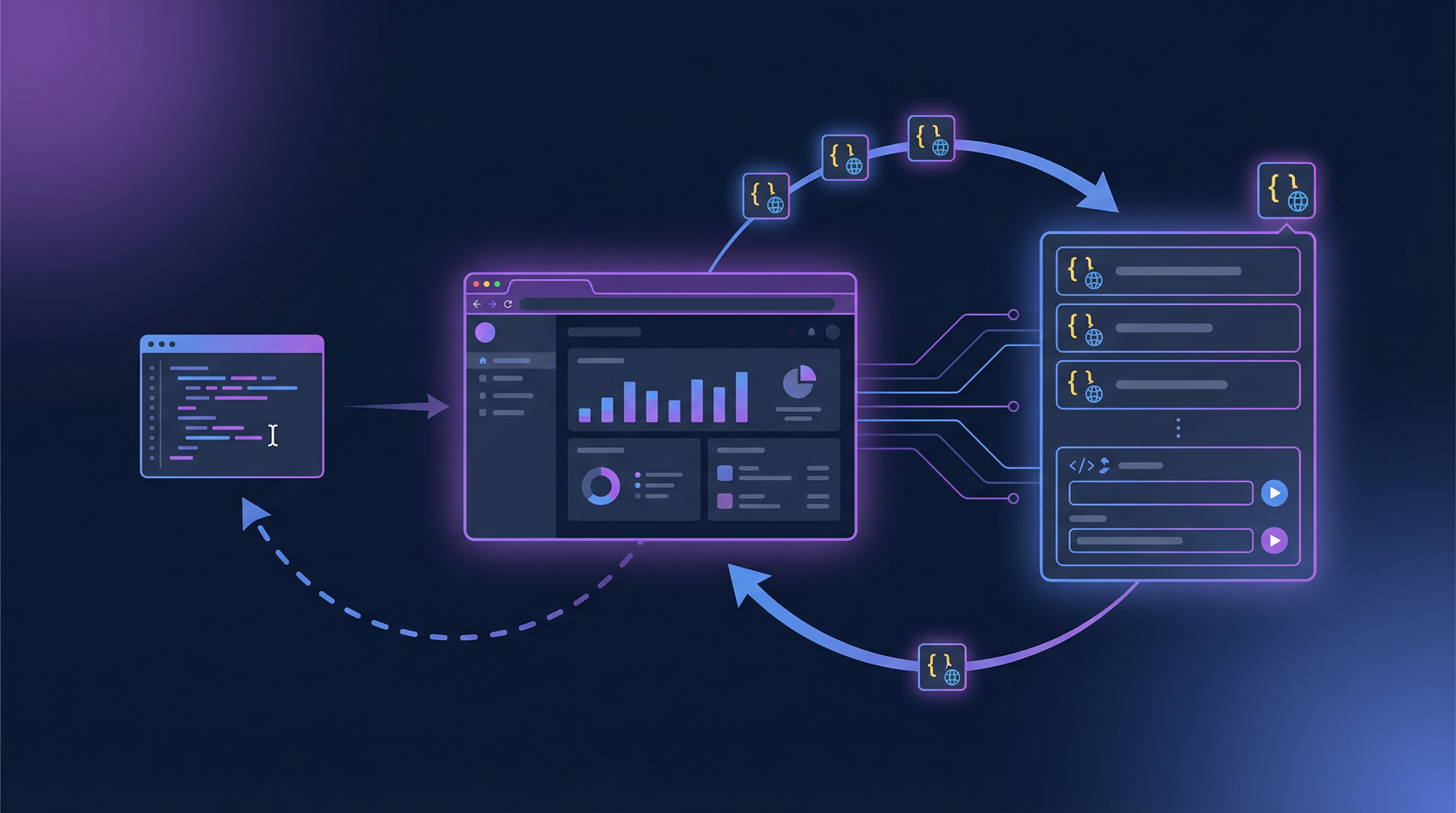
The Model Context Tool Inspector Chrome extension is essential for development:
- Install the extension from the Chrome Web Store
- Enable the flag at
chrome://flags/#enable-webmcp-testing - Open your React app and click the extension icon
- See all registered tools with their schemas — verify your hooks are registering correctly
- Test tools manually by entering JSON parameters
- Test with Gemini — enter a natural language prompt and see if the agent correctly identifies and invokes your tools
This lets you bypass the non-deterministic nature of LLMs during initial development and test your tool definitions deterministically.
Full Example: Flight Search App
The react-webmcp repository includes a complete flight search demo that replicates Google's official react-flightsearch demo using hooks. It registers four tools:
| Tool | Description |
|---|---|
searchFlights |
Search for flights between airports |
listFlights |
List currently displayed flight results |
setFilters |
Apply filters (price range, stops, airlines) |
resetFilters |
Clear all active filters |
An agent can orchestrate these tools to handle a request like:
"Find me the cheapest non-stop flight from London to New York next Monday, returning the following Sunday, for 2 passengers."
The agent calls searchFlights with structured parameters, then setFilters to narrow results, then listFlights to present options — all without scraping a single DOM node.
TypeScript Support
The library ships with full type definitions and augments the global Navigator interface:
import type {
  WebMCPToolDefinition,
  JSONSchema,
  ToolAnnotations,
  WebMCPFormSubmitEvent,
  ModelContext,
} from "react-webmcp";
Your IDE will provide autocomplete for navigator.modelContext methods and all hook/component props.
Current Limitations
WebMCP is in early preview. Keep these in mind:
- Chrome 146+ only — Firefox, Safari, and Edge are in the W3C working group but haven't shipped implementations
- Flag-gated — users must enable
chrome://flags/#enable-webmcp-testing; not on by default yet - Geo-restrictions — Gemini agent features may require a US-based connection during the preview period
- JSON-only results — tool outputs are JSON; rich content types (images, files) are under discussion
- No tool discovery — agents can only see tools after navigating to a page; there's no equivalent of
robots.txtfor tools yet - Max ~50 tools per page — the spec recommends keeping tool counts manageable to avoid overwhelming agent context windows
What's Next for WebMCP
The spec is actively evolving. Key proposals in flight:
- Tool categories and filtering (Issue #88) — let agents query specific tool subsets
- Session and auth context (Issue #87) — standardize how tools interact with authentication
- Lifecycle events (Issue #85) —
toolwillexecute,toolcomplete,toolerrorfor better observability - Remote MCP server bridging (Issue #83) — connect backend MCP servers to browser agents
- Rich content types (Issue #86) — return images, tables, and HTML from tools
- File attachments (Issue #81) — upload files via tool interactions
- WebExtensions API (Issue #74) — let browser extensions consume WebMCP tools
Getting Started
# Install
npm install react-webmcp

# Enable Chrome flag
# Navigate to chrome://flags/#enable-webmcp-testing → Enabled → Relaunch

# Install the inspector extension
# https://chromewebstore.google.com/detail/model-context-tool-inspec/gbpdfapgefenggkahomfgkhfehlcenpd
Explore the GitHub repository for demos, API reference, and source code. The library is MIT-licensed and contributions are welcome.
WebMCP is where the web meets AI agents. The earlier you start building structured tools into your React apps, the better positioned you'll be when this ships to billions of Chrome users.