
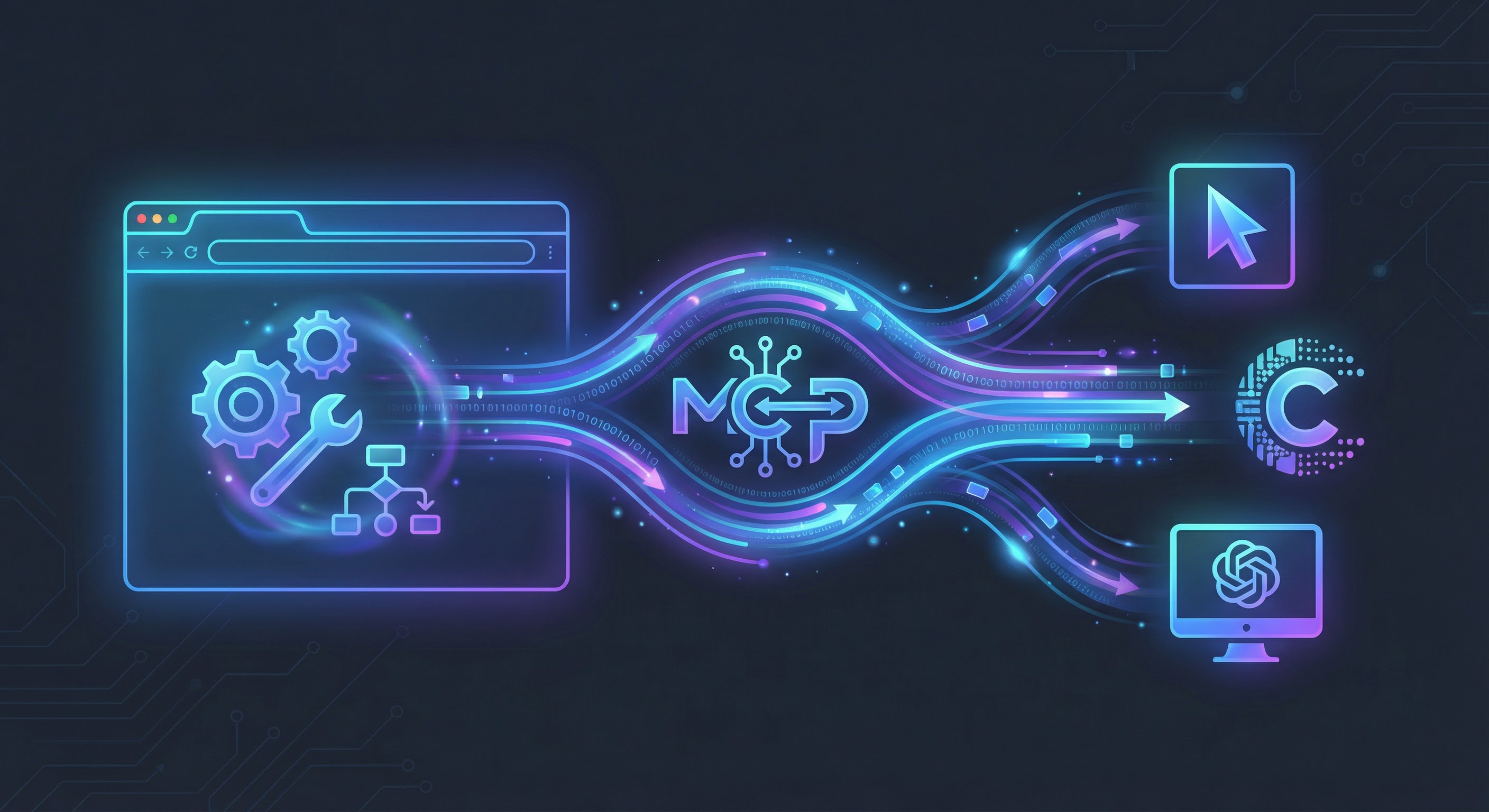
TL;DR - Key Takeaways
- MCP-WebMCP bridges browser-native WebMCP tools to desktop AI clients like Cursor, Claude Desktop, and any MCP-compatible app — so LLMs can discover and call website-exposed tools directly
- 26 tools in one server — 24 Playwright-powered browser automation tools (navigate, click, fill, screenshot, etc.) plus 2 WebMCP meta-tools for discovering and calling page-registered tools
- Two connection modes — Launch mode auto-starts Chrome with WebMCP enabled; CDP mode attaches to your existing browser session
- Two transport modes — stdio for native MCP client integration (
mcp.json), HTTP for hosted or remote setups - Zero-config quick start — one
npxcommand in your MCP client config and you're running
The Gap: WebMCP Tools Exist, But Desktop AI Can't Reach Them
WebMCP is a W3C-proposed standard that lets websites register structured tools through navigator.modelContext. A flight booking site can expose a searchFlights tool. A restaurant page can expose book_table. These tools have names, descriptions, and JSON Schema inputs — everything an AI agent needs to interact reliably without brittle screen-scraping.
The problem? Desktop AI clients can't access them.
Cursor runs as a native app. Claude Desktop runs as a native app. ChatGPT Desktop runs as a native app. None of them have a browser engine with navigator.modelContext support. They speak MCP (Model Context Protocol) — a standard for connecting AI agents to tool servers over stdio or HTTP. But WebMCP tools live inside browser tabs, not on MCP servers.
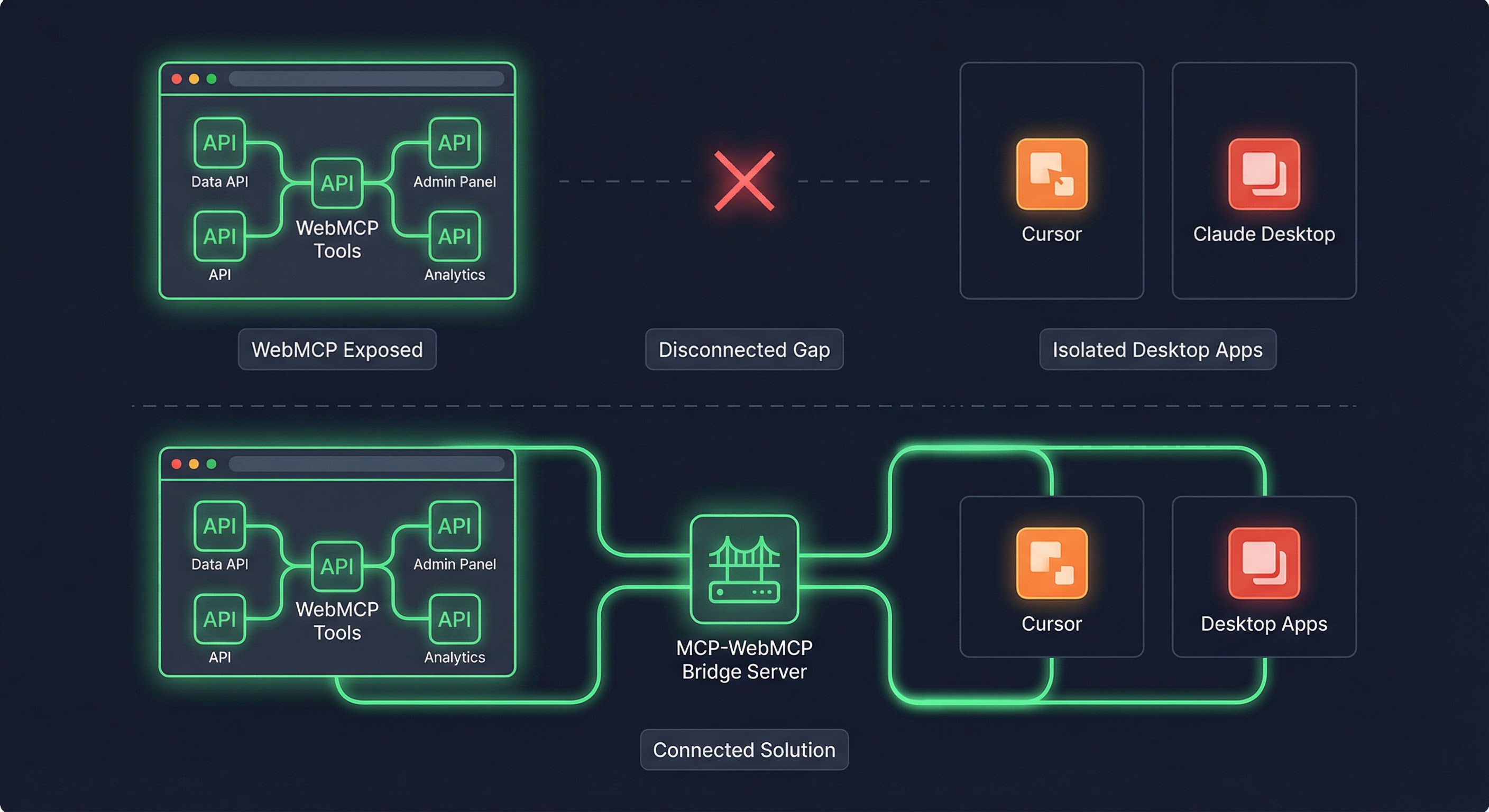
This creates a frustrating gap: websites are building structured tools for AI agents, but the most popular AI development environments can't use them. The tools exist. The protocol exists. The bridge doesn't.
That's why I built MCP-WebMCP.
What MCP-WebMCP Does
MCP-WebMCP is an open-source MCP server that connects Chrome (via Playwright) to any MCP-compatible client. It does two things:
- Browser automation — 24 tools for navigating, clicking, typing, taking screenshots, managing tabs, and evaluating JavaScript in the browser
- WebMCP bridge — 2 meta-tools (
webmcp_list_toolsandwebmcp_call_tool) that discover and invoke whatever tools the current web page has registered through the WebMCP API
When an AI agent in Cursor calls webmcp_list_tools, MCP-WebMCP executes navigator.modelContextTesting.listTools() in the active Chrome tab and returns the results over MCP. When the agent calls webmcp_call_tool, MCP-WebMCP runs the tool's execute function in the browser and returns the structured response. The agent never touches HTML. It never parses screenshots. It calls tools by name with typed parameters and gets structured data back.
Architecture
The system has three layers: browser connection, tool registry, and MCP transport.
graph TD
    subgraph mcp_webmcp ["MCP-WebMCP Server"]
        PB["PlaywrightBrowserSource<br/>24 browser tools + 2 WebMCP meta-tools"]
        TR[ToolRegistry]
        MCP["MCP Server"]
    end

    subgraph transport ["Transport Layer"]
        STDIO["stdio<br/>(default, for mcp.json)"]
        HTTP["HTTP /mcp<br/>:3100 (optional)"]
    end

    subgraph browser_modes ["Browser Connection"]
        Launch["--launch<br/>chromium.launch()"]
        CDP["CDP :9222<br/>connectOverCDP()"]
    end

    Launch --> PB
    CDP --> PB
    PB --> TR
    TR --> MCP
    MCP --> STDIO
    MCP --> HTTP

    STDIO --> Cursor["Cursor"]
    STDIO --> Claude["Claude Desktop"]
    HTTP --> Any["Any MCP Client"]
Browser connection handles how the server reaches Chrome. In Launch mode, it spawns a fresh Chrome instance with --enable-features=WebMCPTesting injected automatically. In CDP mode, it attaches to an existing Chrome window via the Chrome DevTools Protocol on port 9222 — useful when you want to keep your logged-in sessions and open tabs.
PlaywrightBrowserSource wraps all 26 tools. The 24 browser tools use Playwright's API directly. The 2 WebMCP meta-tools execute JavaScript in the page context to call navigator.modelContextTesting.listTools() and navigator.modelContextTesting.executeTool().
Transport exposes the tools to MCP clients. Stdio mode is the default — clients like Cursor spawn the server process and communicate via stdin/stdout. HTTP mode runs an Express server on port 3100 with a streamable /mcp endpoint for remote or hosted deployments.
Connection Modes
| Mode | How it works | Best for |
|---|---|---|
Launch (--launch) |
Spawns a new Chrome window via Playwright. Injects WebMCP flags automatically. | Zero-config setup. No pre-running Chrome needed. |
| CDP (default) | Connects to an existing Chrome via chromium.connectOverCDP() on port 9222. |
Using your existing browser with saved sessions and tabs. |
Transport Modes
| Transport | How it works | Best for |
|---|---|---|
| stdio | Client spawns process, communicates via stdin/stdout. | mcp.json integration with Cursor, Claude Desktop. |
| HTTP | Express server on /mcp endpoint (port 3100). |
Hosted deployments, remote clients, manual usage. |
The 26 Tools
MCP-WebMCP exposes 26 tools organized into categories. The first 24 are Playwright-powered browser automation primitives. The last 2 are the WebMCP bridge — the ones that make this server unique.
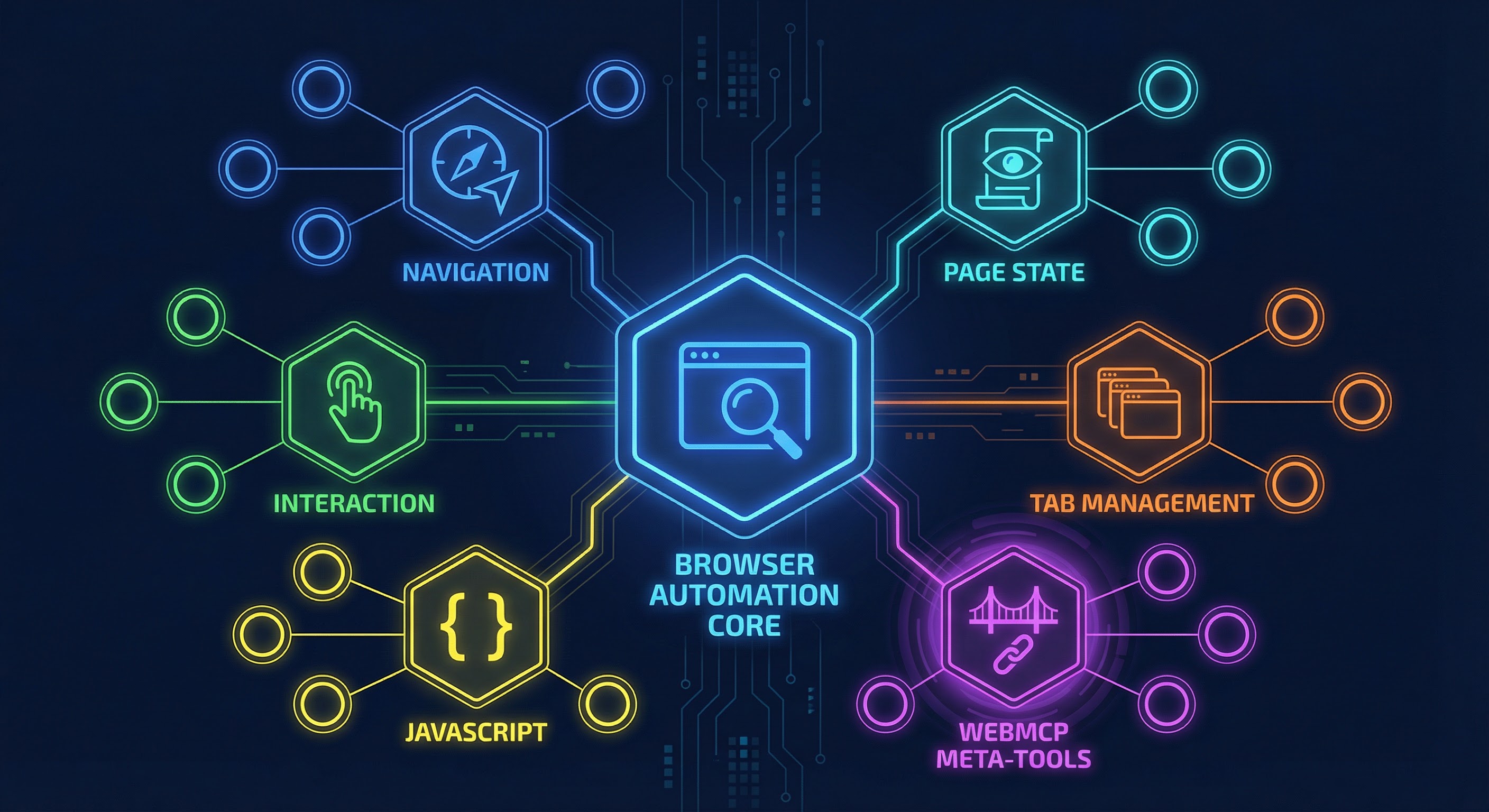
Browser Automation (24 tools)
| Category | Tools | What they do |
|---|---|---|
| Navigation | browser_navigate, browser_back, browser_forward, browser_reload |
Move between pages |
| Page State | browser_url, browser_snapshot, browser_screenshot, browser_console_logs, browser_network_requests |
Read page content and debug info |
| Interaction | browser_click, browser_type, browser_fill, browser_hover, browser_select_option, browser_press_key, browser_focus |
Interact with page elements |
| Scrolling | browser_scroll |
Scroll page or specific elements |
| Tabs | browser_tab_list, browser_tab_new, browser_tab_select, browser_tab_close |
Manage browser tabs |
| JavaScript | browser_evaluate |
Execute arbitrary JS in page context |
| Wait | browser_wait |
Wait for time or CSS selector |
| Lifecycle | browser_launch |
Launch a new browser window |
WebMCP Meta-Tools (2 tools)
| Tool | What it does |
|---|---|
webmcp_list_tools |
Calls navigator.modelContextTesting.listTools() on the active page and returns all registered tools with their names, descriptions, and JSON Schema inputs |
webmcp_call_tool |
Calls navigator.modelContextTesting.executeTool() with the specified tool name and parameters, returning the structured response |
These two meta-tools are dynamic — their output changes as the user navigates between pages. A flight booking page might expose searchFlights and bookFlight. Navigate to a restaurant page and you'll find book_table instead. The agent calls webmcp_list_tools to discover what's available on the current page before calling any tool.
Element Targeting with Snapshot + Ref
Browser tools that interact with elements use a ref-based targeting system instead of CSS selectors. The agent first calls browser_snapshot to get an accessibility tree with [ref=N] markers, then uses those ref numbers to click, type, or hover on specific elements.
sequenceDiagram
    participant Agent
    participant Server as MCP-WebMCP
    participant Page as Chrome Tab

    Agent->>Server: browser_snapshot
    Server->>Page: ariaSnapshot()
    Page-->>Server: Accessibility tree
    Note over Server: Assigns [ref=N] to each element
    Server-->>Agent: Annotated snapshot

    Note over Agent: Picks ref=5 for Submit button

    Agent->>Server: browser_click {ref: 5}
    Note over Server: Resolves ref=5 via getByRole().nth()
    Server->>Page: Click resolved locator
    Page-->>Server: Done
    Server-->>Agent: Clicked button "Submit" ref=5
This approach is more reliable than CSS selectors because it's based on the accessibility tree rather than implementation-specific DOM structure.
Quick Start: 3 Minutes to Running
Prerequisites
| Requirement | Details |
|---|---|
| Node.js | v18+ |
| Chrome | Version 146+ (Beta or Canary) — stable Chrome doesn't ship WebMCP yet |
Setup for Cursor
Add this to ~/.cursor/mcp.json:
{
  "mcpServers": {
    "mcp-webmcp": {
      "command": "npx",
      "args": ["-y", "@tech-sumit/mcp-webmcp", "--launch"]
    }
  }
}
That's it. The --launch flag tells the server to spawn Chrome Beta with WebMCP enabled on startup. All 26 tools are immediately available to your AI agent.
Setup for Claude Desktop
Add this to ~/Library/Application Support/Claude/claude_desktop_config.json:
{
  "mcpServers": {
    "mcp-webmcp": {
      "command": "npx",
      "args": ["-y", "@tech-sumit/mcp-webmcp", "--launch"]
    }
  }
}
Auto-Configure (CLI shortcut)
npx @tech-sumit/mcp-webmcp config cursor   # writes ~/.cursor/mcp.json
npx @tech-sumit/mcp-webmcp config claude    # writes Claude Desktop config
CDP Mode (use your existing Chrome)
If you prefer to attach to your own browser (to keep logged-in sessions, bookmarks, and open tabs):
# 1. Launch Chrome Beta with the required flags
/Applications/Google\ Chrome\ Beta.app/Contents/MacOS/Google\ Chrome\ Beta \
  --remote-debugging-port=9222 \
  --enable-features=WebMCPTesting

# 2. Use this config (no --launch flag)
{
"mcpServers": {
"mcp-webmcp": {
"command": "npx",
"args": ["-y", "@tech-sumit/mcp-webmcp"]
}
}
}Demo: An AI Agent Books a Restaurant Table
Here's a concrete example of the full flow. An AI agent in Cursor uses MCP-WebMCP to navigate to a WebMCP-enabled restaurant page, discover the book_table_le_petit_bistro tool, and make a reservation — all through structured tool calls.
sequenceDiagram
    participant Agent as AI Agent (Cursor)
    participant MCP as MCP-WebMCP
    participant Chrome as Chrome Browser
    participant Page as Le Petit Bistro

    Agent->>MCP: browser_launch {channel: "chrome-beta"}
    MCP->>Chrome: chromium.launch()
    Chrome-->>MCP: Browser ready
    MCP-->>Agent: "Launched chrome-beta"

    Agent->>MCP: browser_navigate {url: "localhost:5173"}
    MCP->>Chrome: page.goto()
    Chrome-->>MCP: Page loaded
    MCP-->>Agent: "Le Petit Bistro"

    Agent->>MCP: webmcp_list_tools
    MCP->>Page: navigator.modelContextTesting.listTools()
    Page-->>MCP: [{name: "book_table_le_petit_bistro", ...}]
    MCP-->>Agent: Tool schema with inputs

    Agent->>MCP: webmcp_call_tool {name: "book_table_le_petit_bistro", ...}
    MCP->>Page: navigator.modelContextTesting.executeTool(...)
    Page-->>MCP: "Reservation confirmed"
    MCP-->>Agent: "Hello Sumit, We look forward to welcoming you..."
Step by step:
-
browser_launch— the agent tells MCP-WebMCP to open Chrome Beta. The server callschromium.launch()with--enable-features=WebMCPTestinginjected automatically. -
browser_navigate— the agent navigates to the restaurant's reservation page. The page loads its WebMCP-enabled form. -
webmcp_list_tools— the agent discoversbook_table_le_petit_bistrowith its full input schema: name, phone, date, time, guests, seating preference, and special requests. -
webmcp_call_tool— the agent calls the tool with structured parameters. The browser fills in the form, submits it, and returns a confirmation message: "Reservation Received — Bon Appetit!"
No screenshot parsing. No DOM traversal. No guessing which input field is which. The agent called a named tool with typed parameters and got a structured response.
Why This Matters: 5 Benefits of the Bridge Approach
1. Website Tools Become First-Class MCP Resources
Any WebMCP tool registered on any website becomes callable from Cursor, Claude Desktop, or any MCP client. The website developer writes navigator.modelContext.registerTool(...) once, and every MCP-connected AI agent can use it.
2. Browser Session Reuse
In CDP mode, the agent connects to your existing Chrome session. Your cookies, login sessions, and saved passwords are all there. The agent doesn't need separate API keys or OAuth flows — it uses the same authenticated session you're already using.
3. Human-in-the-Loop by Default
The browser window stays visible. You can watch the agent navigate, see which tools it calls, and intervene at any point. Unlike headless MCP servers, this is not a black box — everything happens in the browser you can see.
4. Full Browser Automation as Fallback
Not every website has WebMCP tools. The 24 browser automation tools let agents fall back to clicking buttons, filling forms, and reading page content via the accessibility tree. WebMCP tools are the fast path; browser automation is the universal fallback.
5. Cross-Platform, Cross-Client
The server works on macOS, Linux, and Windows. It supports Chrome, Chrome Beta, Chrome Canary, Edge, and Edge Beta. Any MCP client that speaks stdio or HTTP can connect — not just Cursor and Claude Desktop.
How MCP-WebMCP Compares
| Approach | Browser access | WebMCP tools | Structured responses | Session reuse | Setup complexity |
|---|---|---|---|---|---|
| MCP-WebMCP | Full Playwright automation | Yes — discover and call page tools | Yes | Yes (CDP mode) | One line in mcp.json |
| Headless MCP servers | None — server-side only | No | Yes | No | Deploy and maintain server |
| Screen-scraping agents | Screenshot + DOM parse | No | No — free-text extraction | Sometimes | Fragile, per-site setup |
| Chrome extension bridges | Limited to extension API | Partial | Varies | Yes | Install extension + config |
MCP-WebMCP sits at the intersection of structured tool access (like headless MCP servers) and real browser interaction (like screen-scraping agents), without the downsides of either.
Under the Hood
The server is built on a few key dependencies:
| Package | Role |
|---|---|
@modelcontextprotocol/sdk |
MCP server and transport implementation |
playwright |
Browser connection and automation |
commander |
CLI argument parsing |
express |
HTTP transport for /mcp endpoint |
The architecture separates browser interaction (PlaywrightBrowserSource) from tool registration (ToolRegistry) and protocol handling (MCP Server). This means you could swap Playwright for a different browser engine, or add a new transport layer, without touching the tool logic.
The WebMCP meta-tools work by evaluating JavaScript in the active page context:
// webmcp_list_tools — executed in Chrome tab
const tools = await navigator.modelContextTesting.listTools();
return tools; // Array of {name, description, inputSchema}
// webmcp_call_tool — executed in Chrome tab
const result = await navigator.modelContextTesting.executeTool(
toolName,
parameters
);
return result; // Structured response from the website's tool handlerThis is the WebMCP Testing API available in Chrome 146+ behind the --enable-features=WebMCPTesting flag. When WebMCP ships in stable Chrome, the API will move from navigator.modelContextTesting to navigator.modelContext.
CLI Reference
The mcp-webmcp CLI supports multiple commands and modes:
# stdio mode (default) — for mcp.json integration
mcp-webmcp [--launch] [--channel chrome-beta] [--headless] [--url https://example.com]

# HTTP mode — hosted server on /mcp endpoint
mcp-webmcp start [--launch] [--port 3100]

# Discover tools on a WebMCP page (requires Chrome with CDP)
mcp-webmcp list-tools [--host localhost] [--port 9222]

# Call a tool by name
mcp-webmcp call-tool searchFlights '{"from":"SFO","to":"JFK"}'

# Auto-configure MCP client
mcp-webmcp config cursor
mcp-webmcp config claude| Flag | Description | Default |
|---|---|---|
--launch |
Launch Chrome on startup (vs browser_launch tool) |
false |
--channel |
Browser channel: chrome, chrome-beta, chrome-canary, msedge |
chrome-beta |
--headless |
Run browser headless | false |
--url |
Navigate to URL after launch | none |
--cdp-host |
CDP debugging host | localhost |
--cdp-port |
CDP debugging port | 9222 |
--port |
HTTP server port (start command) | 3100 |
Troubleshooting
If something goes wrong, this decision tree covers the most common issues:
flowchart TD
    Problem(["Something went wrong"]) --> Q0{"Using --launch mode?"}
    Q0 -- Yes --> Q0a{"Chrome Beta/Canary<br/>installed?"}
    Q0a -- No --> F0["Install Chrome Beta<br/>chrome.google.com/beta"]
    Q0a -- Yes --> Q3
    Q0 -- No --> Q1{"Can you reach Chrome?<br/>curl localhost:9222/json/version"}
    Q1 -- No --> F1["Launch Chrome with<br/>--remote-debugging-port=9222"]
    Q1 -- Yes --> Q2{"Chrome version >= 146?"}
    Q2 -- No --> F2["Install Chrome Beta/Canary"]
    Q2 -- Yes --> Q3{"Server starts?"}
    Q3 -- No --> F3["Check error message in stderr"]
    Q3 -- Yes --> Q4{"MCP client connects?"}
    Q4 -- No --> F4["Check mcp.json config<br/>Toggle MCP off/on"]
    Q4 -- Yes --> Q5{"WebMCP tools work?"}
    Q5 -- No --> F5["Ensure --enable-features=WebMCPTesting<br/>(--launch adds it automatically)"]
    Q5 -- Yes --> OK(["Everything working"])
Most common fixes:
- "Chrome version X is not supported" — Install Chrome Beta or Chrome Canary (version 146+)
- "WebMCP is NOT available" — Chrome wasn't launched with
--enable-features=WebMCPTesting. Use--launchmode, which adds the flag automatically. - "No browser contexts found" — Chrome isn't running with
--remote-debugging-port=9222. Switch to--launchmode or relaunch Chrome with the flag.
What's Next
MCP-WebMCP is at v0.3.0 and under active development. The roadmap follows WebMCP's evolution:
- Stable WebMCP API — when Chrome ships
navigator.modelContextwithout a flag, the server will transition from the testing API to the production API - Multi-tab tool aggregation — discover tools across all open tabs, not just the active one
- Tool caching — avoid re-listing tools on every call when the page hasn't changed
- Extension bridge — a companion Chrome extension for scenarios where CDP isn't available
The broader ecosystem is moving fast. Google and Microsoft are co-authoring the WebMCP spec at the W3C. Chrome 146 Beta already supports the testing API. React developers can use react-webmcp to register tools with hooks and components. As more websites adopt WebMCP, the value of a bridge like MCP-WebMCP compounds — every new tool on every new page becomes immediately accessible to every MCP client.
Get Started
npm install -g @tech-sumit/mcp-webmcpOr run directly without installing:
npx -y @tech-sumit/mcp-webmcp --launch- GitHub: github.com/tech-sumit/mcp-webmcp
- npm: @tech-sumit/mcp-webmcp
- WebMCP Spec: webmachinelearning.github.io/webmcp
- MCP Protocol: modelcontextprotocol.io
- react-webmcp: github.com/tech-sumit/react-webmcp
- License: MIT
Websites are building tools for AI agents. Desktop AI clients speak MCP. MCP-WebMCP is the bridge that connects them. Try it, break it, and open an issue when you find something worth fixing.